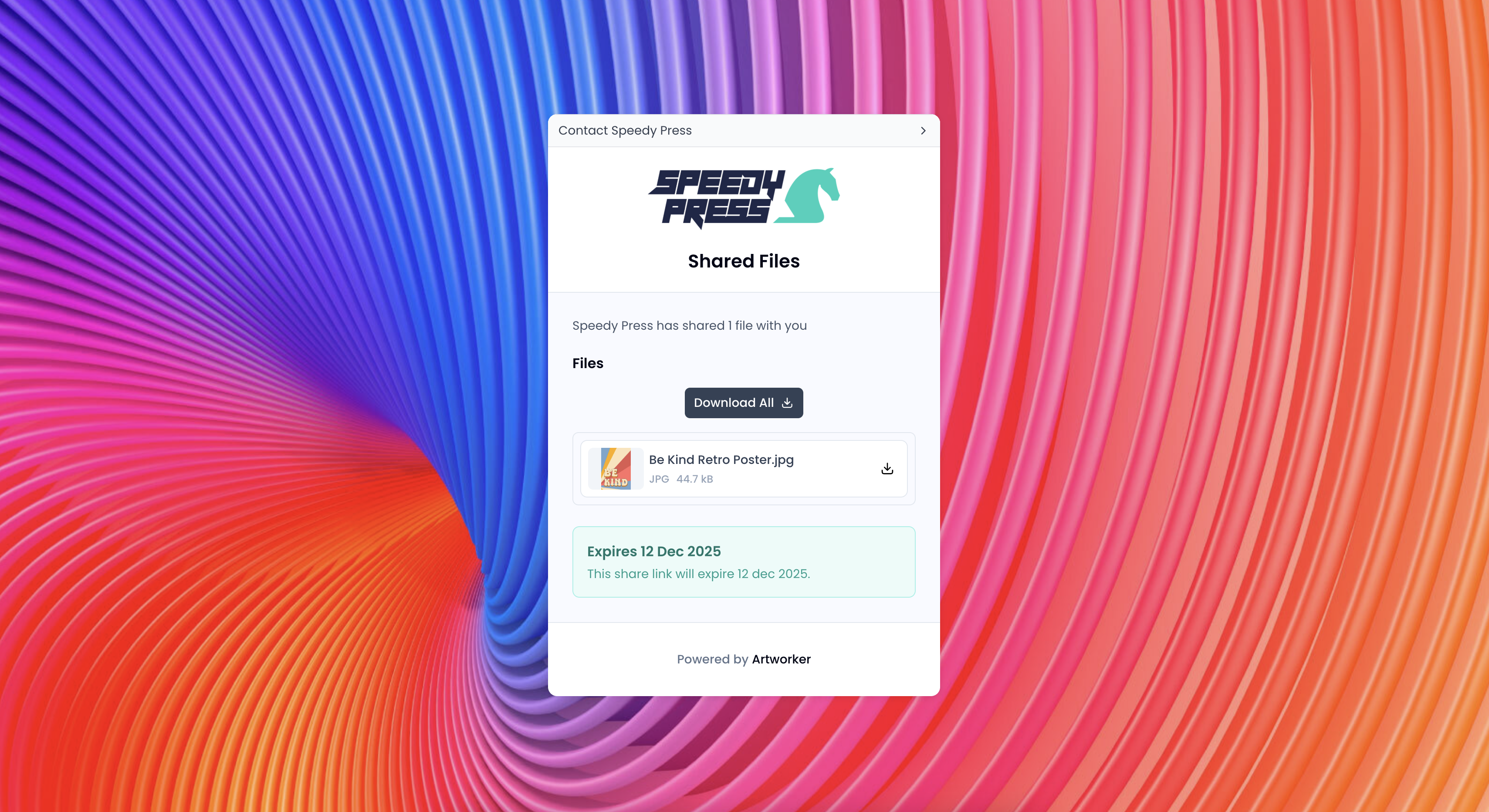
From any file or folder, open the options menu and select the share files option - this will give you two additional options:
Share link to generate a secure URL.
Send email to deliver the files straight to a contact from inside Artworker.
When sharing, you can:
Password protect the files.
Set an expiry date.
Add a message with instructions or notes.
You can see:
If the email was opened.
If the download page was viewed.
If some or all files were downloaded.
This gives you a clear audit trail and helps you know when to follow up.
Your recipient downloads the files through your own branded portal, which shows:
Your logo
Your contact details
Your chosen colours or background
This keeps everything consistent and professional.
From the Files page, select the three dots next to a file or folder.
You will see options including Edit, Download, and Share files.
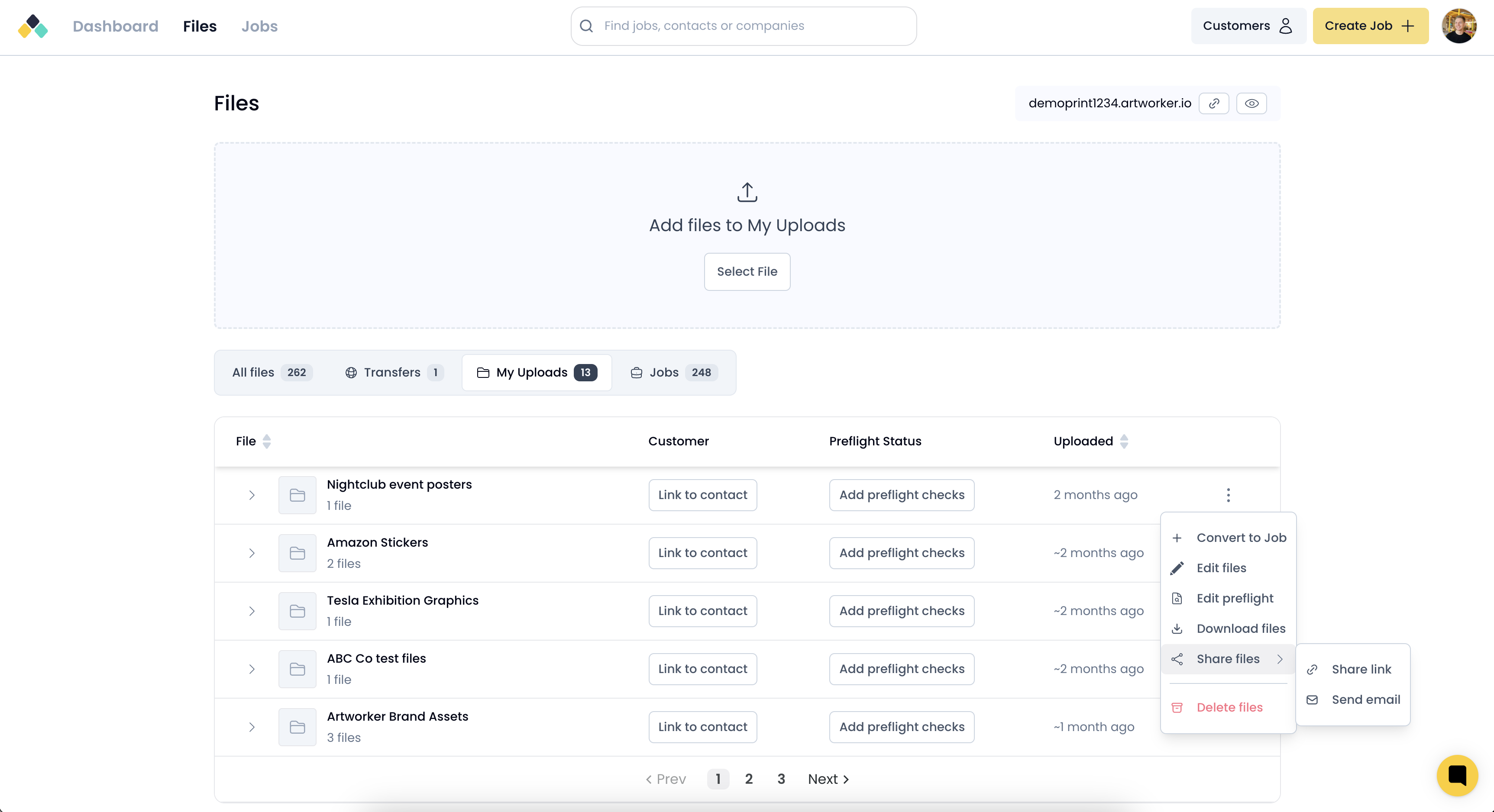
After clicking Share files, you can:
Generate a share link
Send an email
You can switch between these at the top of the share window.
In the share window you can:
Tick Password protect
Tick Set expiry and enter the number of days
Add a message for the recipient
You will see a preview icon of the file you are sharing at the top of the window.
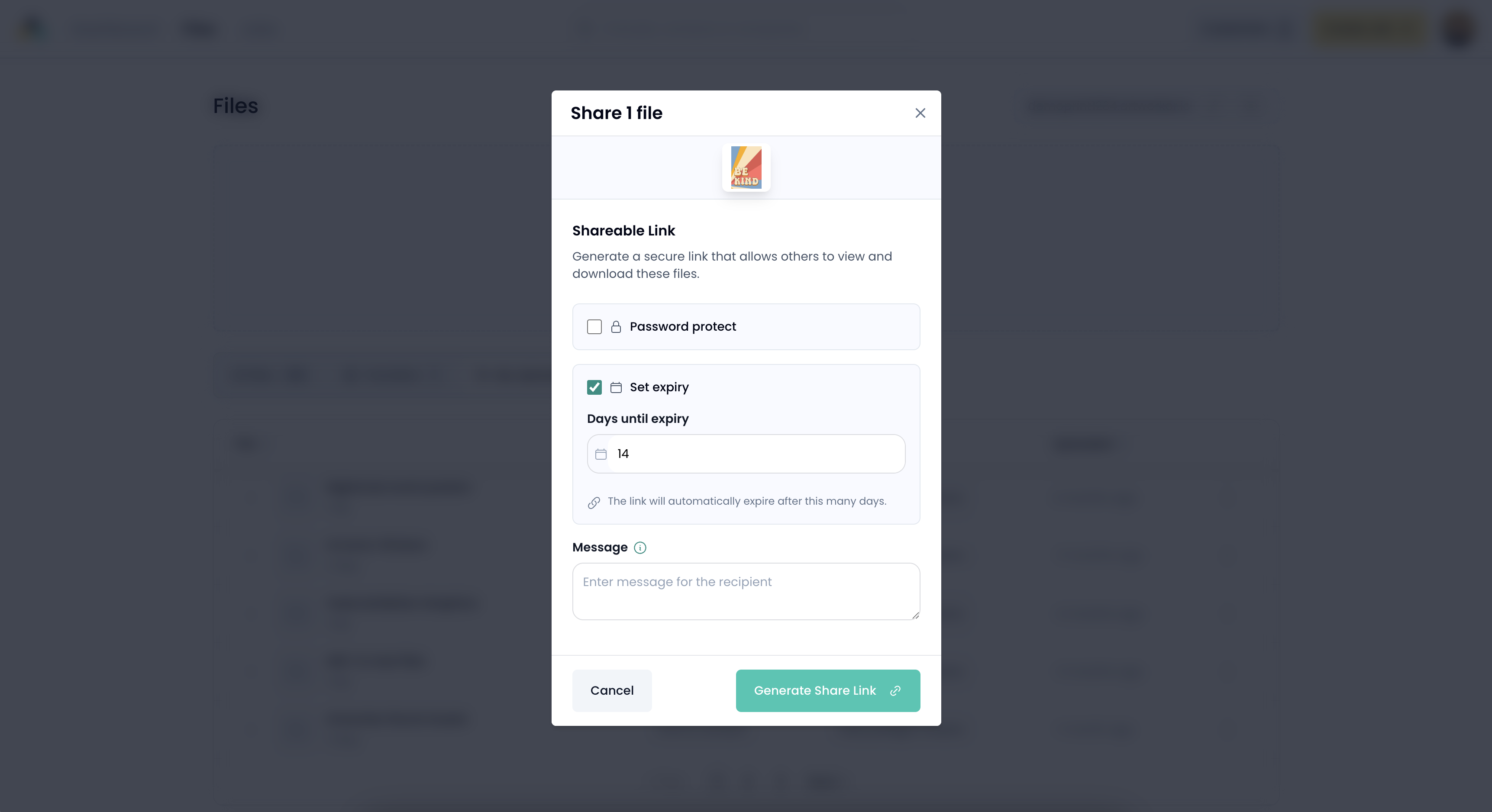
For a link, click Generate Share Link.
For an email, choose or create a contact, then click Send Email.
A confirmation screen will show the active link, its expiry date, and activity status.

Your recipient lands on a clean, branded page where they can:
Preview the files you shared
Download all or individual items
See when the link expires